How to Create an Interactive Crossword for Google Classroom (No Student Login)
Short answer: build the crossword, click Share play link, and post that link as an Assignment or Material in Google Classroom. Students open it in the browser, solve, and press Check, with no account and nothing to install.
You need a free teacher account only to create the link. If you just want a ready puzzle, every example has a Play this sample page you can post with no account at all.
Before you start
- 8–20 words works well on a Chromebook screen. Answers must be 3–24 letters, A–Z.
- Short definition clues beat trivia. Students solve faster when the clue matches how you taught the word.
- The play page has Check and Reveal buttons. Tell students when Reveal is allowed.
Step 1: Enter your words and clues
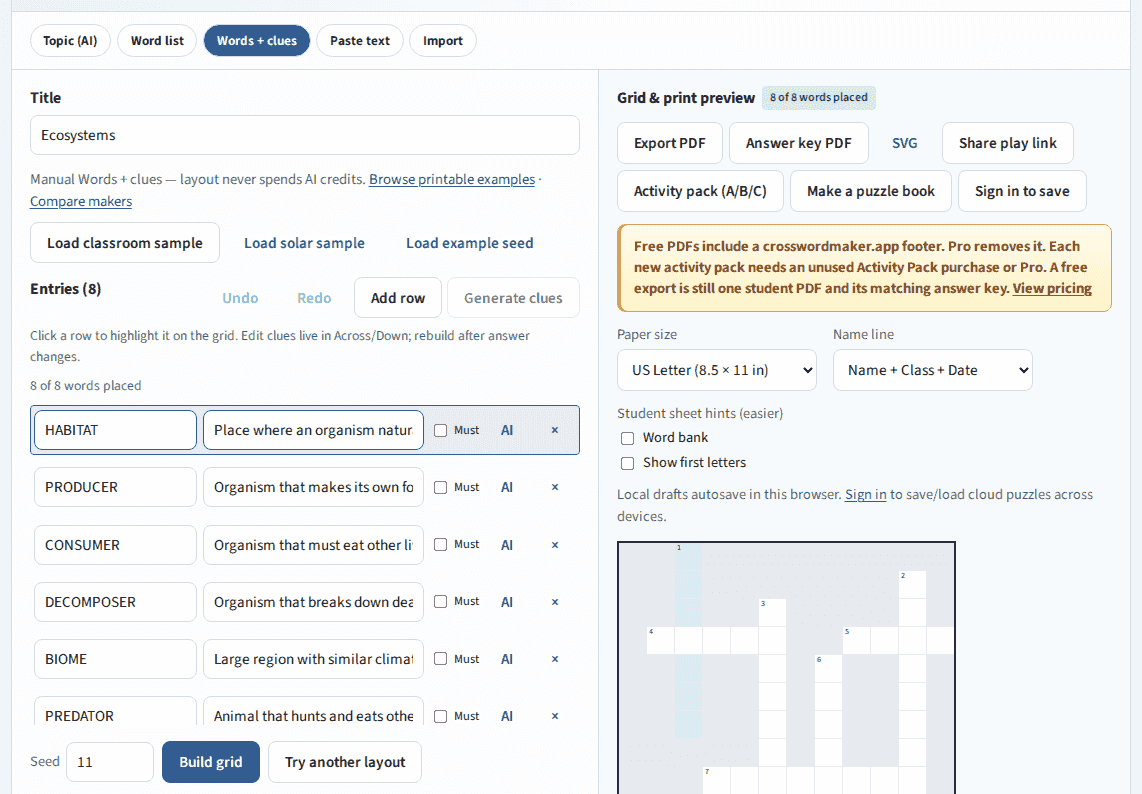
Open the crossword maker for teachers. Pick Words + clues to type
each answer with its clue, or Paste text to paste a list as ANSWER | clue, one per line, then click
Parse into editor. No list yet? Use Topic (AI), type something like “5th grade ecosystems”, and AI
drafts the words and clues for you to edit.
Step 2: Build the grid
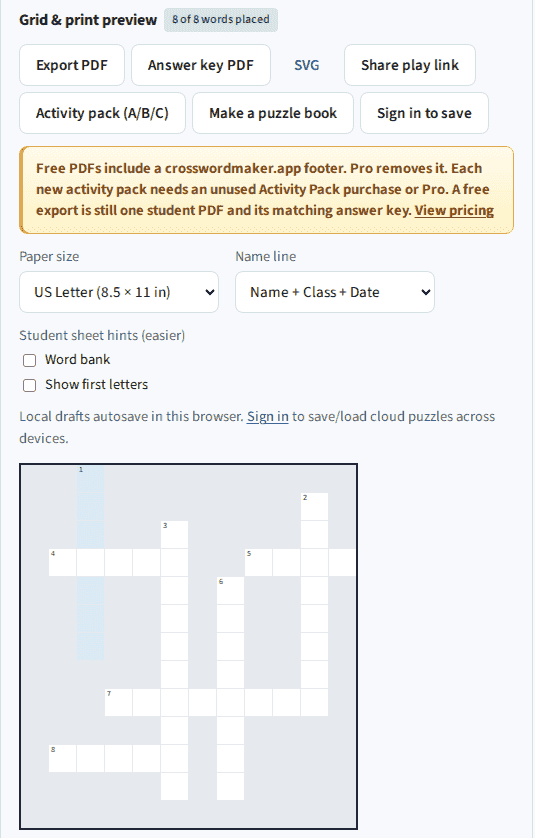
Click Build grid. The layout runs in your browser, usually in well under a second, and never uses AI credits. The status pill shows how many words were placed. If a word is missing, click Rebuild grid or swap that word.
Step 3: Create a share play link
Click Share play link. The first time, you'll be asked to sign in with a free account; your students never are. When the link is ready, click Copy link. Each share link is saved as one of your cloud projects (the free plan keeps 3 active). Archive old projects in your library to free a slot.
Share links are unlisted: they use a random address, are hidden from search engines, and do not appear in any public puzzle gallery. Anyone you give the link to can open it.
Step 4: Post the link in Google Classroom
- Open your class and go to Classwork.
- Click Create, then Assignment (to collect work) or Material (for practice).
- Add a title and instructions, for example “Solve the crossword, press Check, and fix any red squares.”
- Click the Link attachment, paste the address, and add it.
- Click Assign (or schedule it).
The same link works in a Google Slides lesson, a class website, an email to families, or a QR code on the board.
Step 5: Students solve in the browser
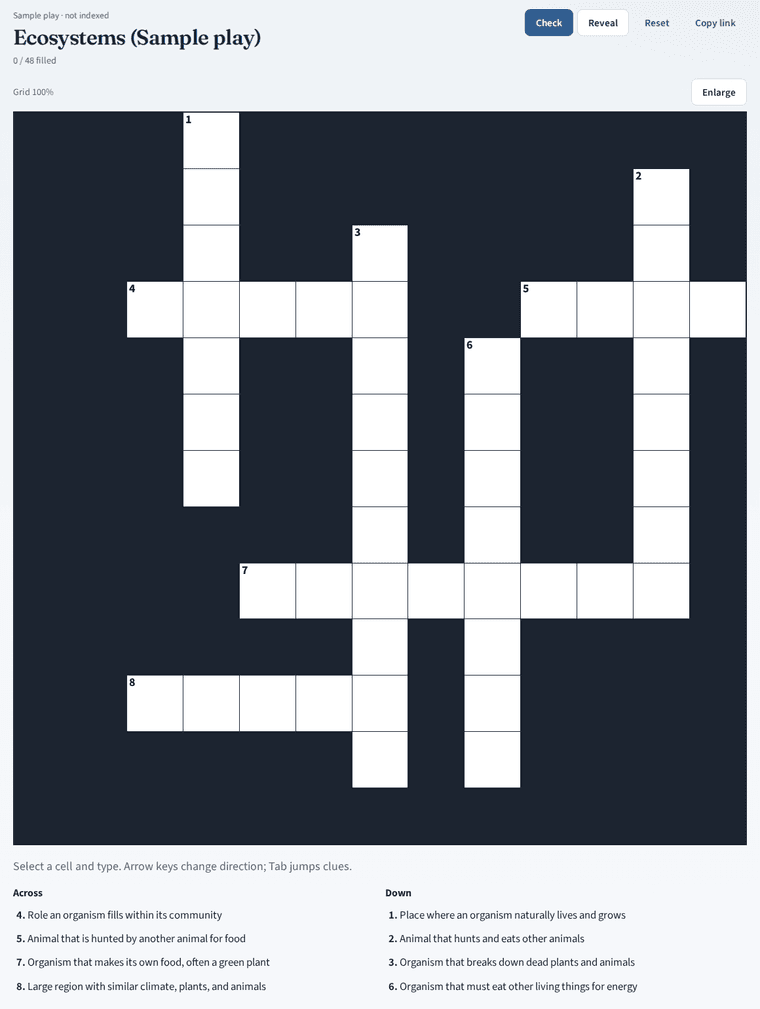
Students click the link and the puzzle opens in a new tab. They type answers into the grid, read Across and Down clues, and press Check to see which letters are right. It works on Chromebooks, tablets, and phones.
How to collect results
The play page does not send scores back to Google Classroom. Three simple options:
- Ask students to attach a screenshot of the finished, checked grid to the assignment.
- Treat it as practice and mark it done, then use the printed version as the graded quiz.
- Give a paper copy: Export PDF makes the student sheet and Answer key PDF the key. See how to print crossword worksheets.
Common questions
Do students need a Google or VocabClues account?
No. They open the link in any browser. Only the teacher who creates the share link signs in.
Can I turn off the Reveal button?
Not yet: share links from the maker include both Check and Reveal. Ask students not to use Reveal, or use the PDF for quizzes.
Does the link expire?
No. Share links from the maker have no expiry date, and archiving the project frees a cloud slot but does not close the link. Treat a posted link as open to anyone who has it, and keep personal details out of puzzles.